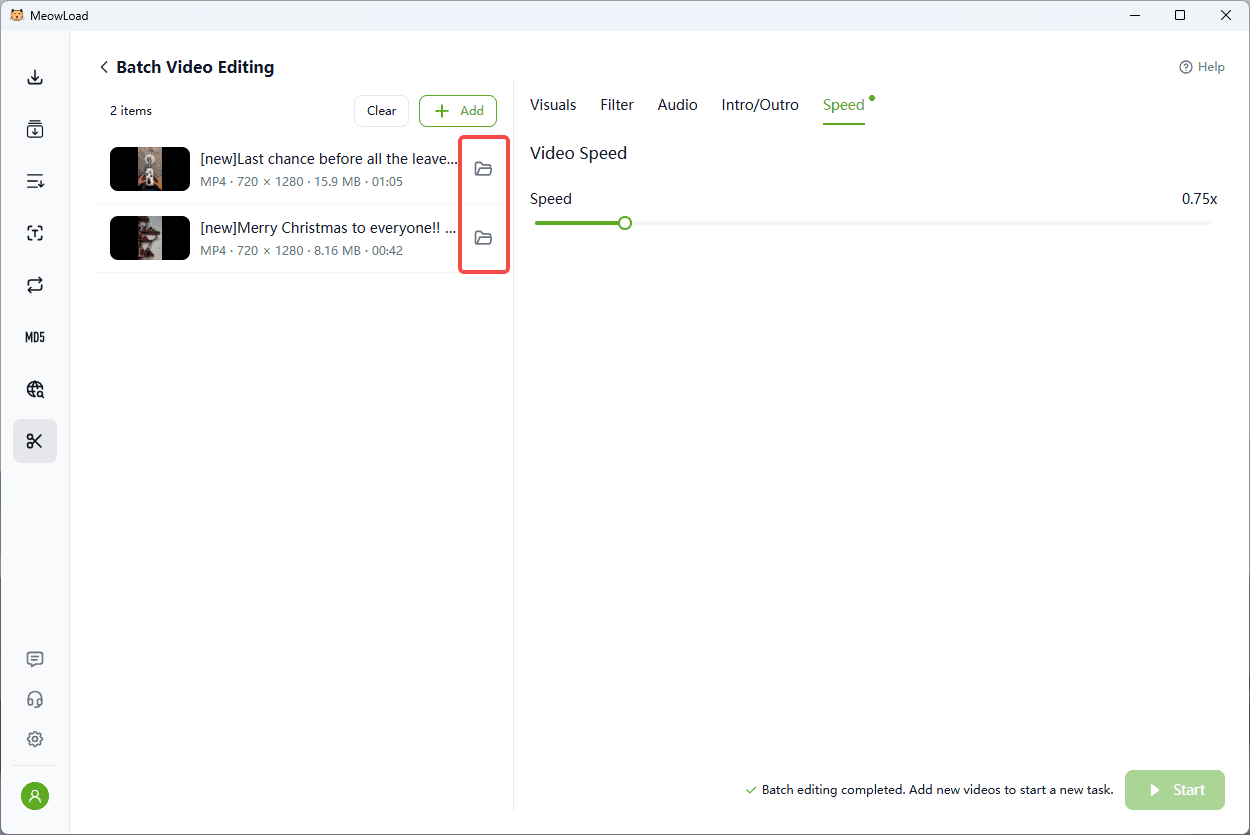
In video editing, speed is crucial, but when dealing with a large volume of footage—such as time-lapses or multi-cam recordings—you face the dilemma of having to adjust the playback speed of each clip individually. Repeating this manual process for 50 or 100 clips is a massive drain on your time. Traditional editing software often lacks the capability for true bulk speed adjustments.
MeowLoad's "Batch Adjust Video Speed" feature solves this. It allows you to set precise speed adjustments for all selected video files within a unified interface, whether it's uniform acceleration or slow-motion. Learn how to efficiently control video time, easily achieve creative effects in bulk, and dedicate more energy to refining your content.
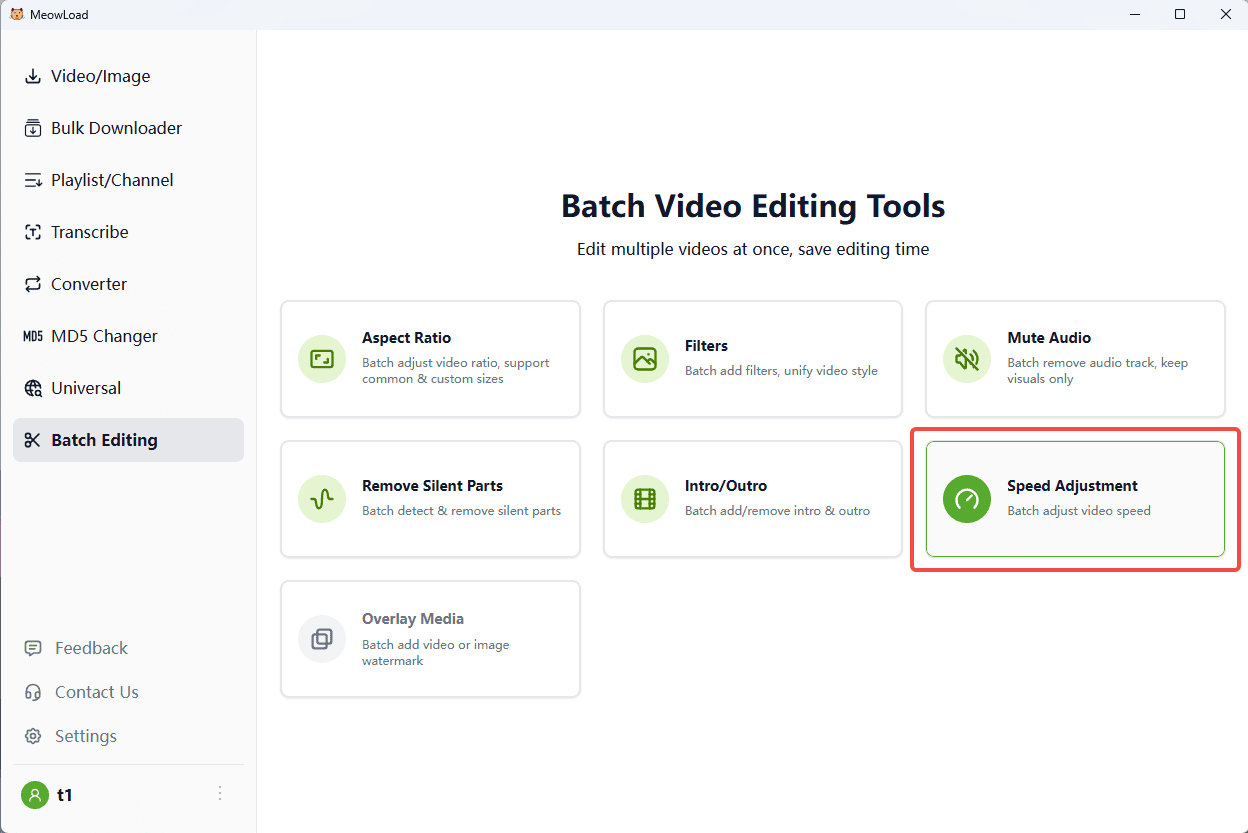
Step 1: Upload Files
Import the batch of videos you want to speed up or slow down.
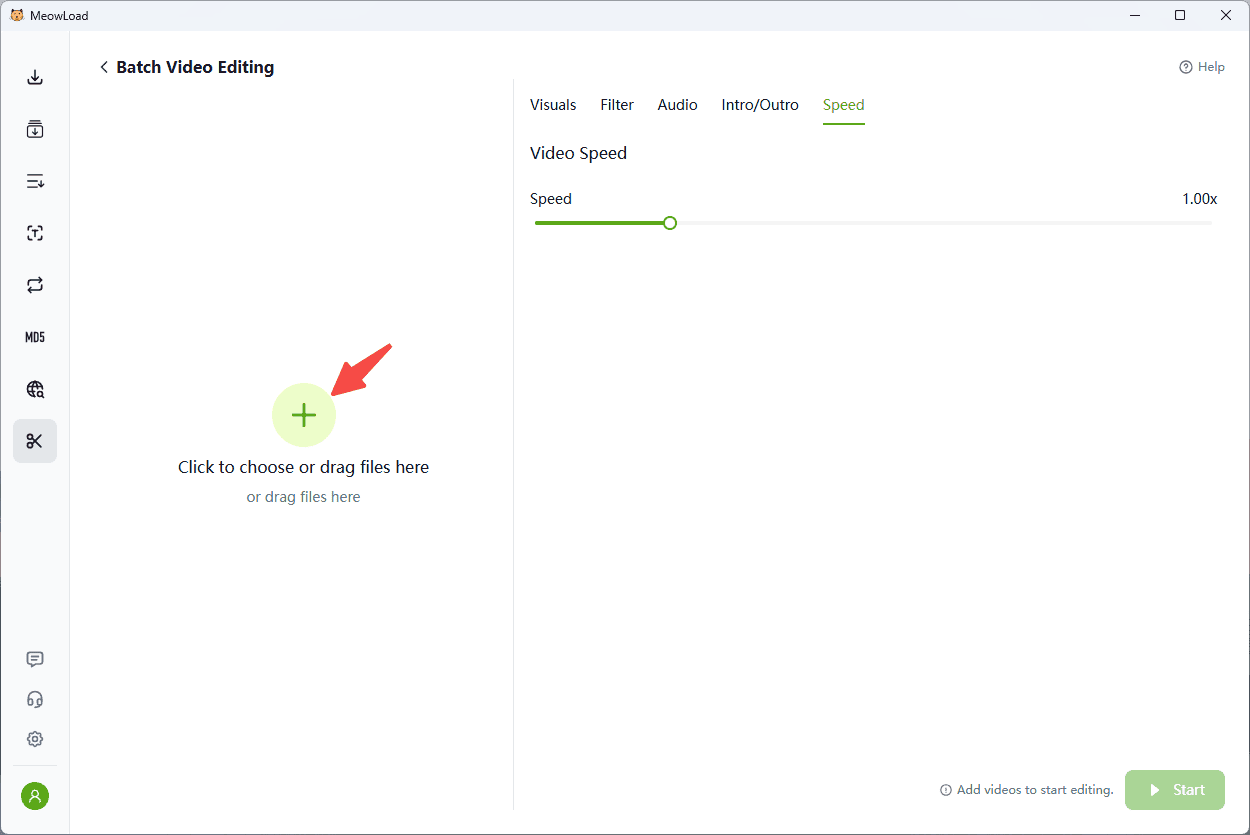
Step 2: Set Speed
Use the Speed Slider to adjust the playback rate (e.g., 0.75x, 1.5x, 2.0x, 4.0x).
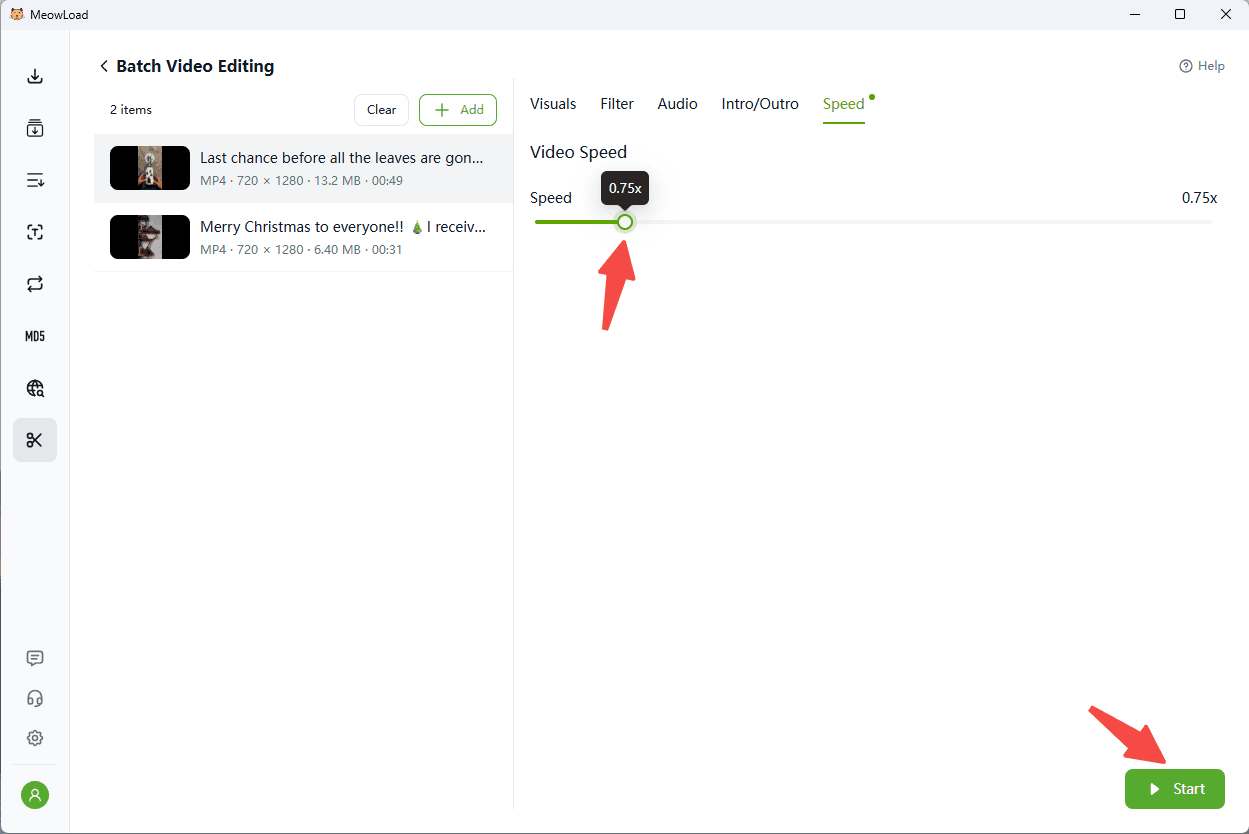
Step 3: Export
Click Start to apply the speed changes to all uploaded files simultaneously.