With the rise of short-form video, creators must adapt the same video asset for multiple aspect ratios: 16:9, 9:16, and 1:1. Are you struggling with how to batch convert your horizontal videos into vertical format? Manual cropping is time-consuming and risks ruining the main subject. Users on Quora and Reddit constantly seek a simple, lossless batch conversion tool.
This tutorial details MeowLoad's "Batch Adjust Video Aspect Ratio" feature. It offers one-click preset conversions and supports intelligent cropping and padding modes, ensuring your videos look their best on any platform. We show you how to easily convert all videos in a folder to your target ratio in bulk, achieving "create once, publish everywhere."
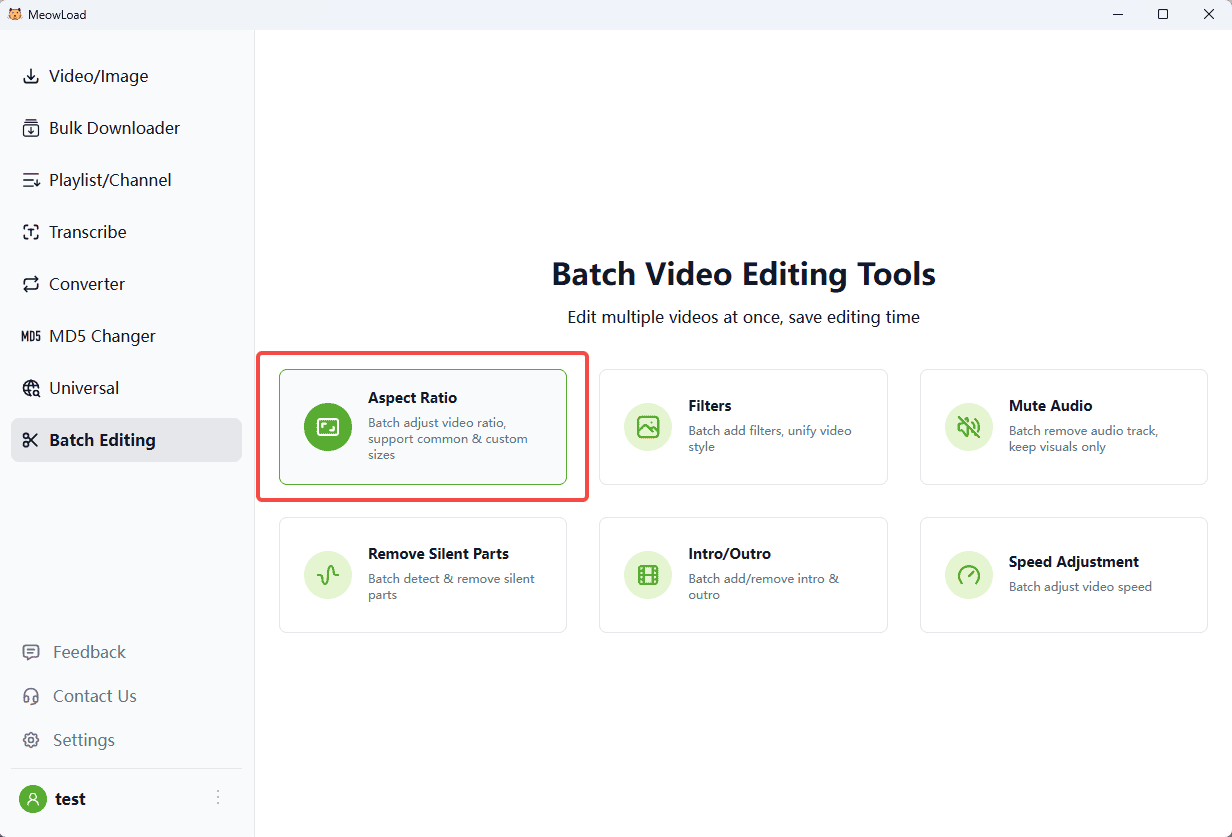
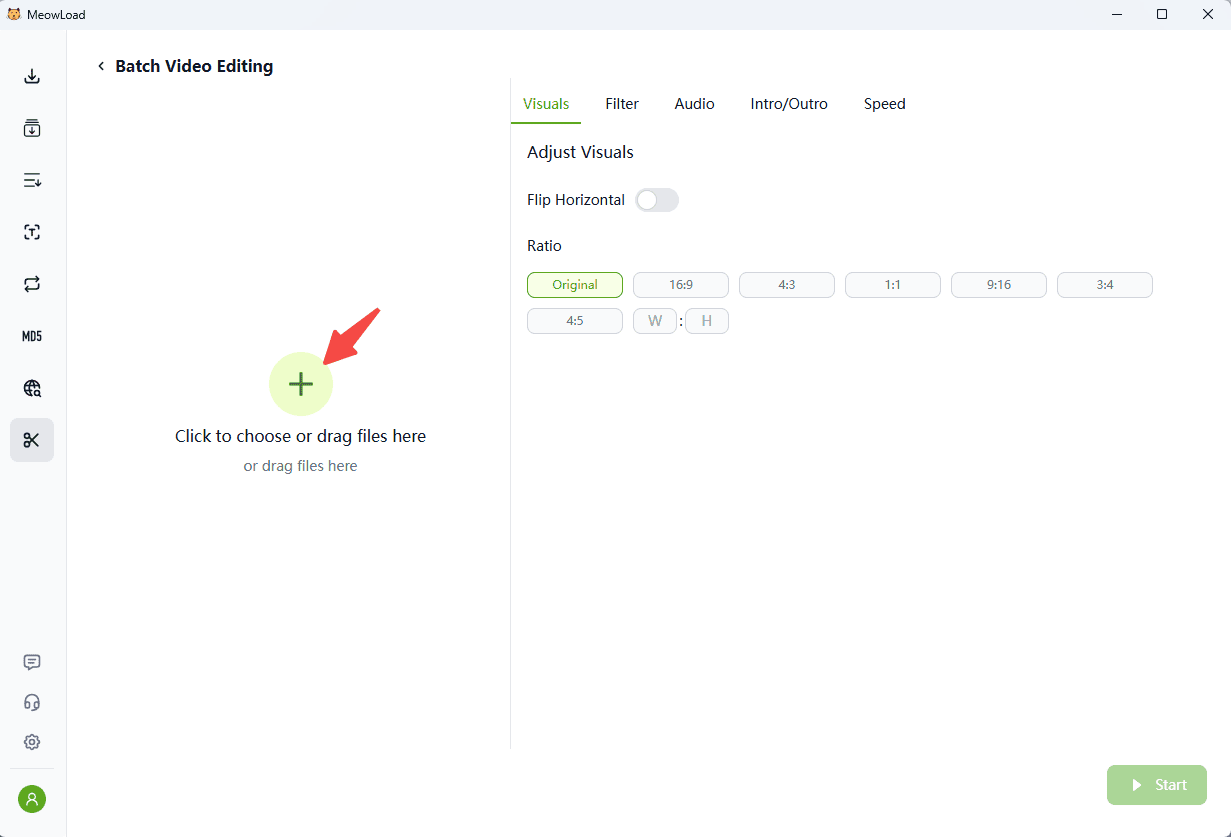
Step 1: Upload Files
Click the upload area to select files from your computer, or simply drag and drop them directly into the window.
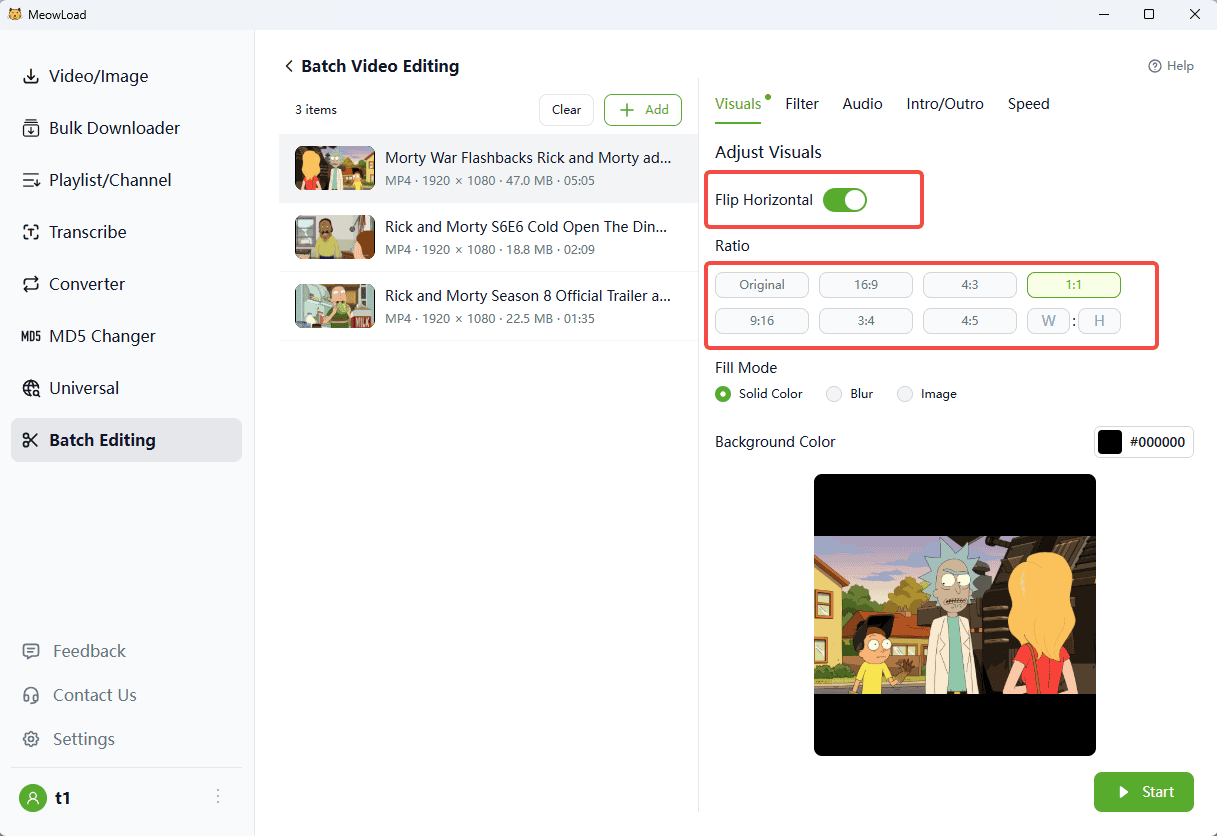
Step 2: Select Aspect Ratio
Choose from a variety of preset aspect ratios (e.g., 1:1 Square) or enter a Custom ratio to fit your specific needs.
Step 3: Mirror Flip (Optional)
If needed, you can toggle the Horizontal Flip option. This mirrors your video, helping the processed version look distinct from the original footage.
Step 4: Set Fill Mode
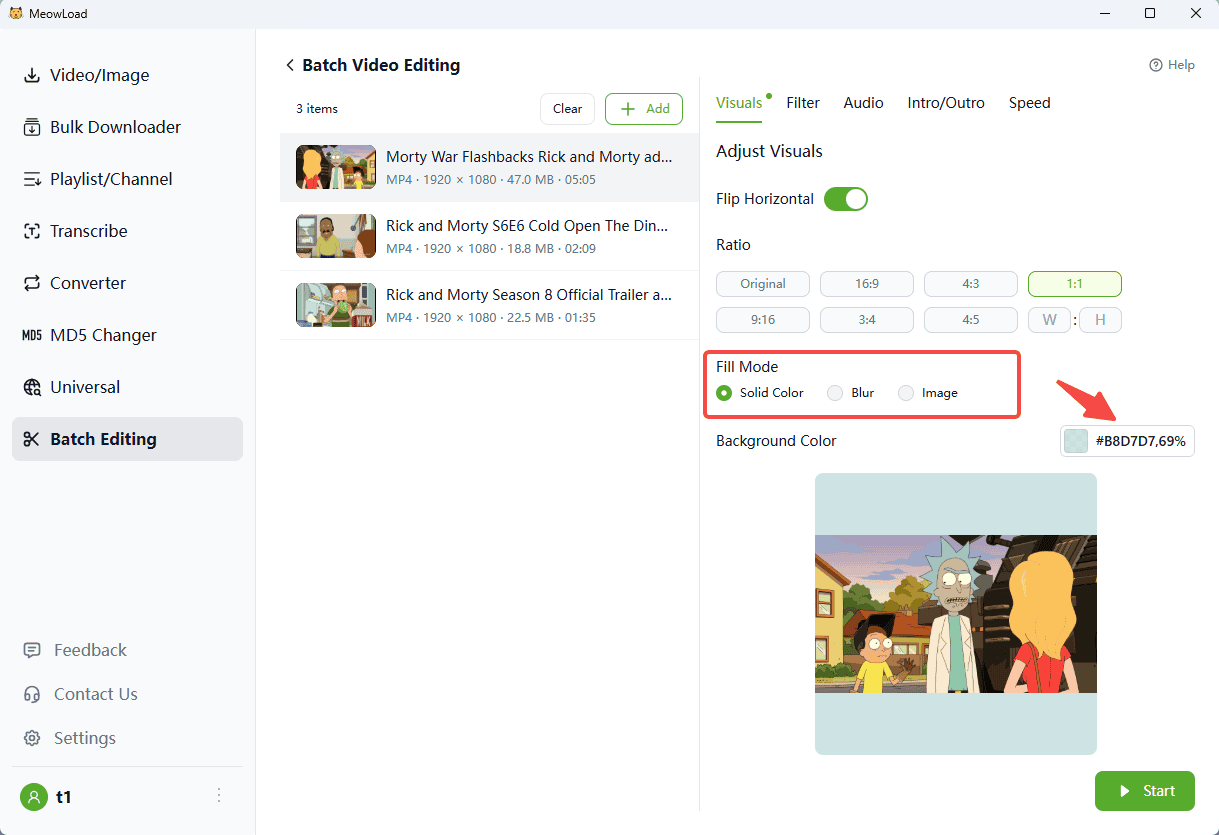
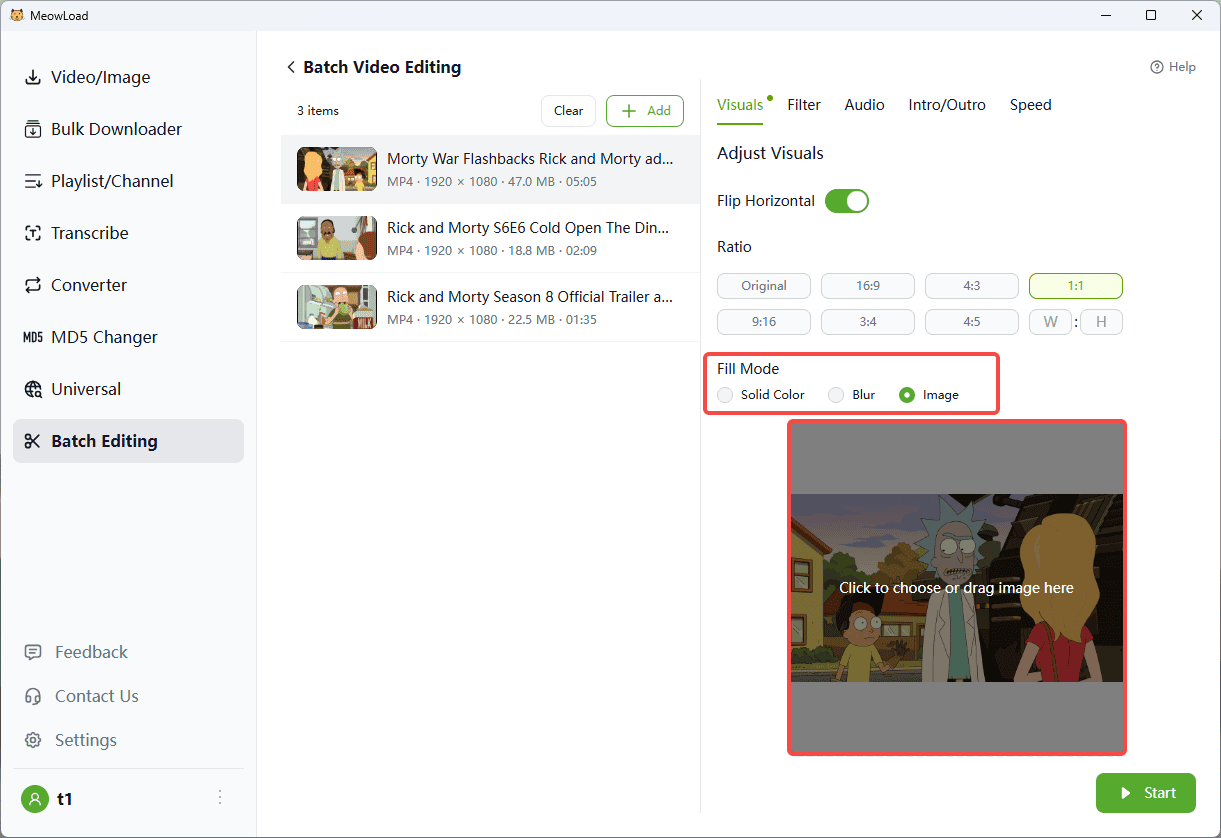
Customize how the "empty space" is filled if your video doesn't perfectly fit the new ratio. You have three options:
Solid Color: Choose a custom background color and adjust its opacity.
Gaussian Blur: Apply a blurred version of your video to the background. Use the slider to adjust the blur intensity.
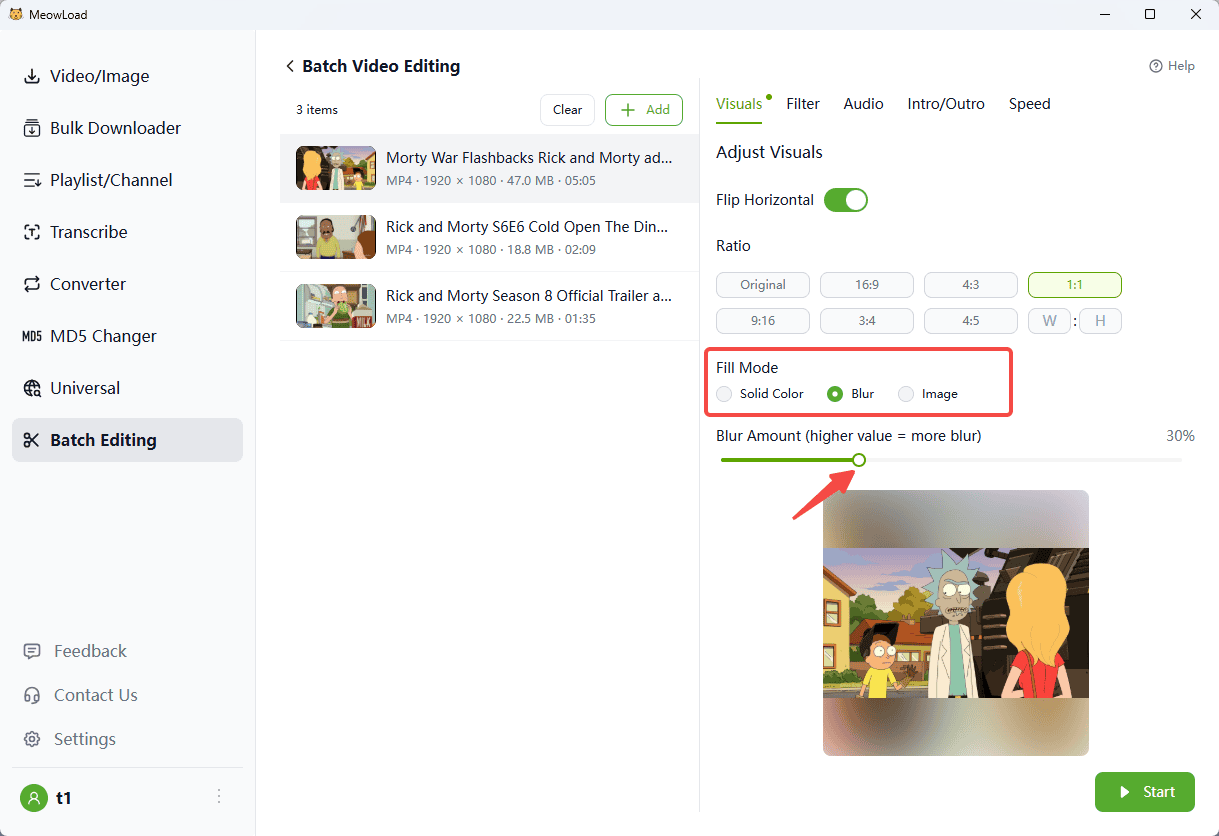
Image Background: Upload your own image to serve as the video backdrop.
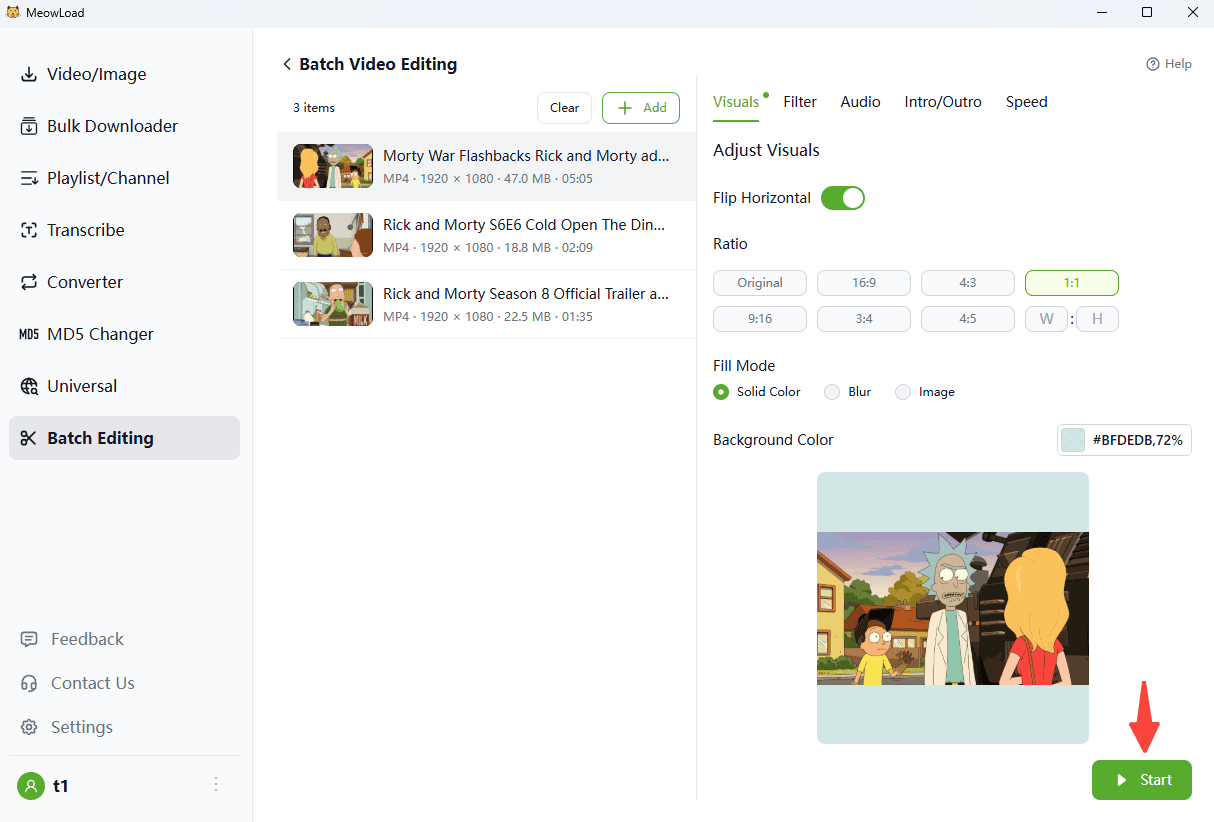
Step 5: Convert
Click the Start button to begin the process. Please note that video rendering may take some time depending on the file size.
Step 6: Export
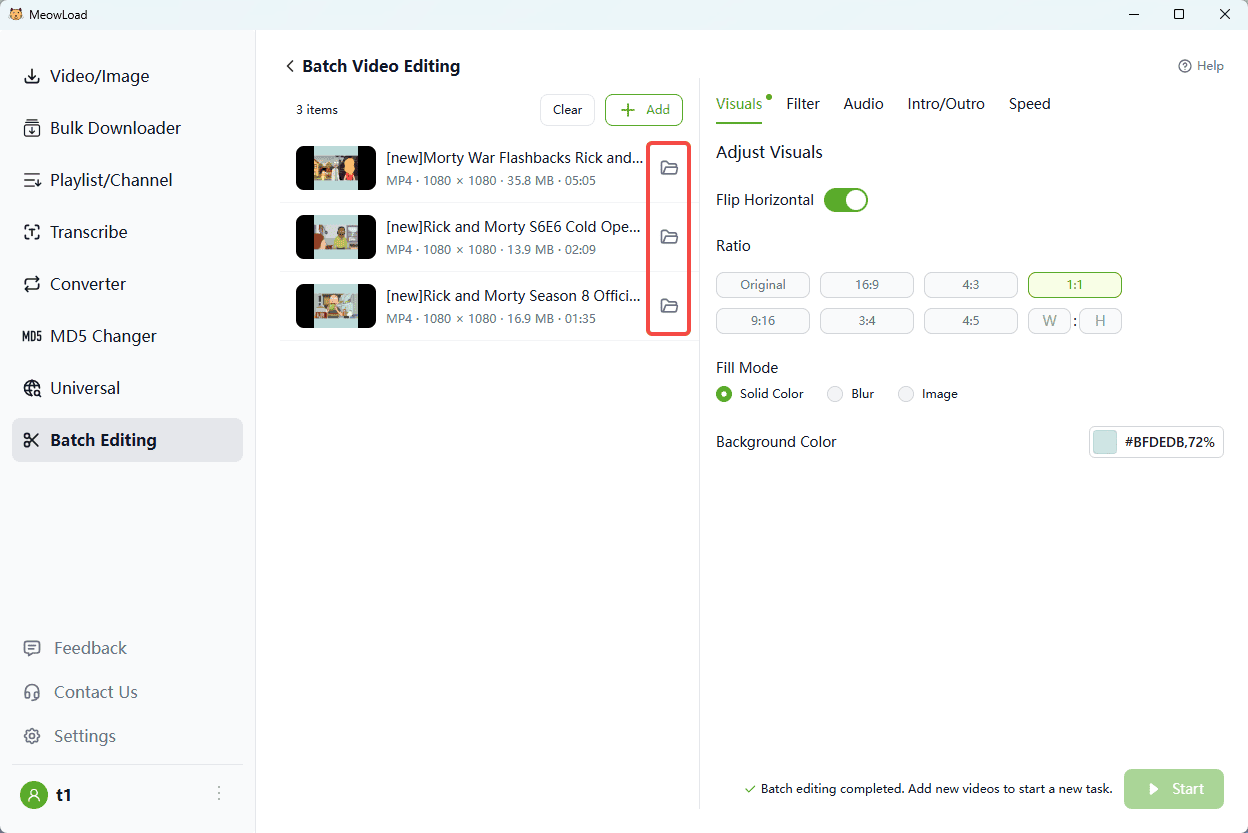
Once the conversion is complete, click the folder icon to view your exported files.