Ever come across stunning images on rednote and want to save them as wallpaper? Only to find that pesky watermark in the bottom right corner!
Found a hilarious creator whose videos you want to save for later? Do you really have to manually click each one? Or worse, resort to screen recording?
Stop wasting your time! Today I'll teach you a trick: not only can you instantly save high-definition, watermark-free original images, but you can also download all videos from a creator's homepage with one click! Free your hands completely—bookmark this for future use!
Open rednote in your browser and use the MeowLoad extension for one-click downloads! Click the link below to install.
Chrome browser🔗: https://chromewebstore.google.com/detail/meowload-videoliveaudioim/gnplpcfnikehohdgnfnfcienljcbaogj
Edge browser🔗: MeowLoad - Video/Live/Audio/Image Downloader - Microsoft Edge Addons
📑Installation Guide : How to install the MeowLoad browser extension?
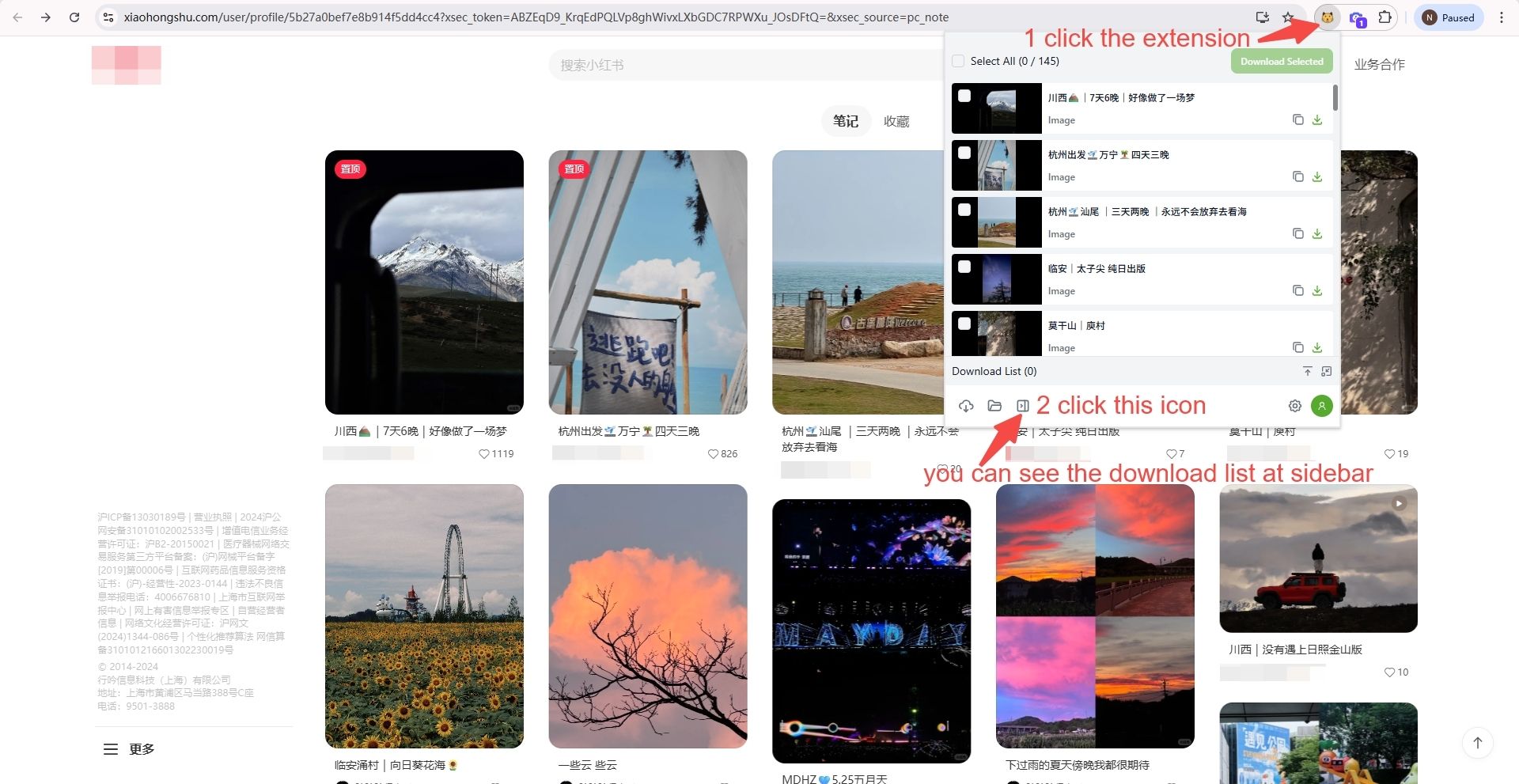
Step 1: Open rednote and click the extension
Open the rednote website, click the MeowLoad extension.
Step 2: Open the download list
Tap the third icon in the bottom-left corner, you can see the download list at sidebar.
Step 3: Select and download
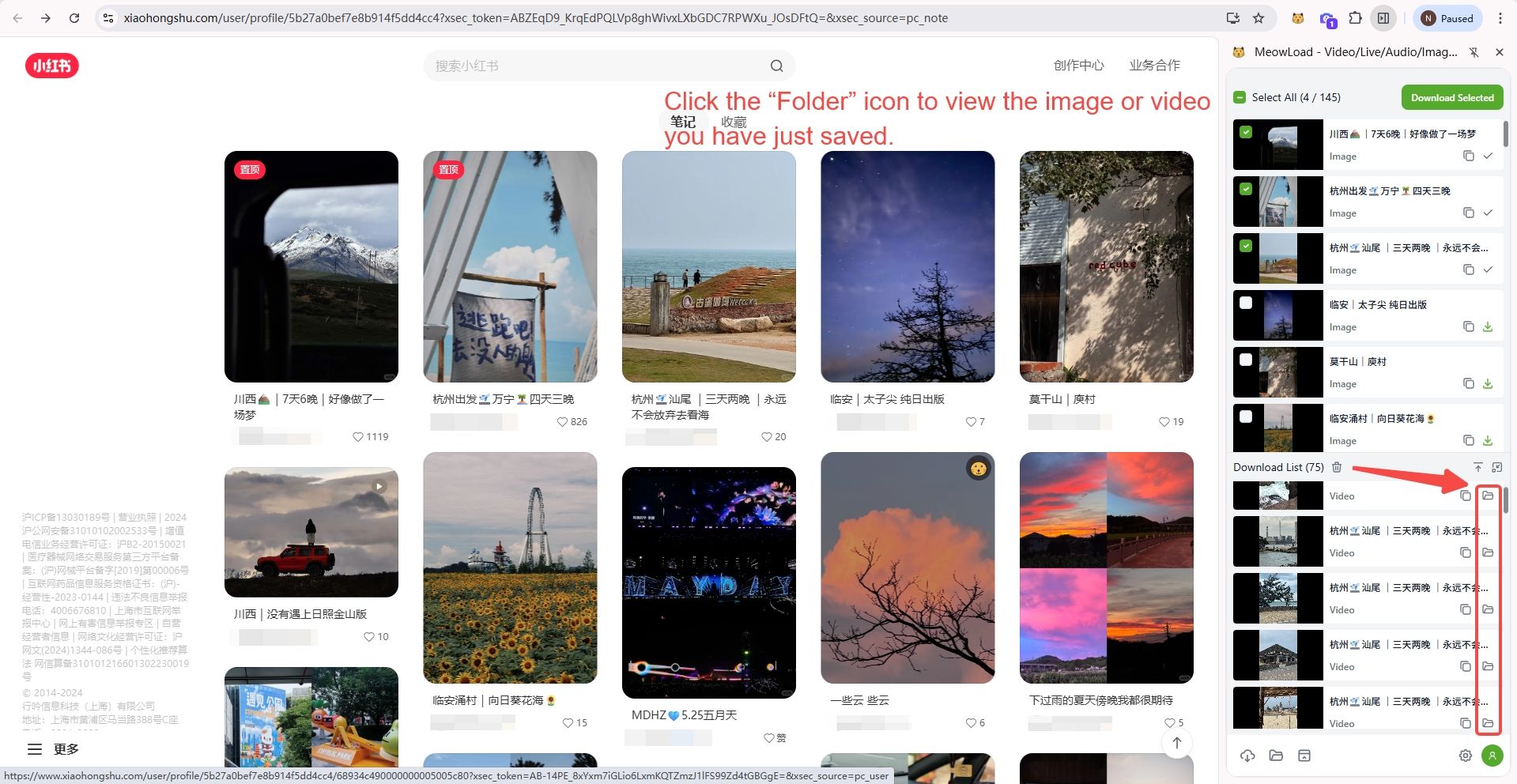
You can select all or part of images/videos, and download selected.

Step 4: View the saved files
You can click the "Folder" to view the images or videos you have just saved.
🎉🎉Congratulations! The download is complete.