When recording videos, livestreaming, giving speeches, or teaching online, maintaining eye contact and speaking smoothly is every creator’s goal.
Yet reading from a script while facing the camera often leads to awkward pauses, off-beat pacing, or broken sentences.
Now, MeowLoad’s Teleprompter feature helps you solve these challenges —
allowing you to stay natural, confident, and fluent in front of the camera.
Key Features
-
Quick Script Import: Type or paste your script, or directly import it from transcription results.
-
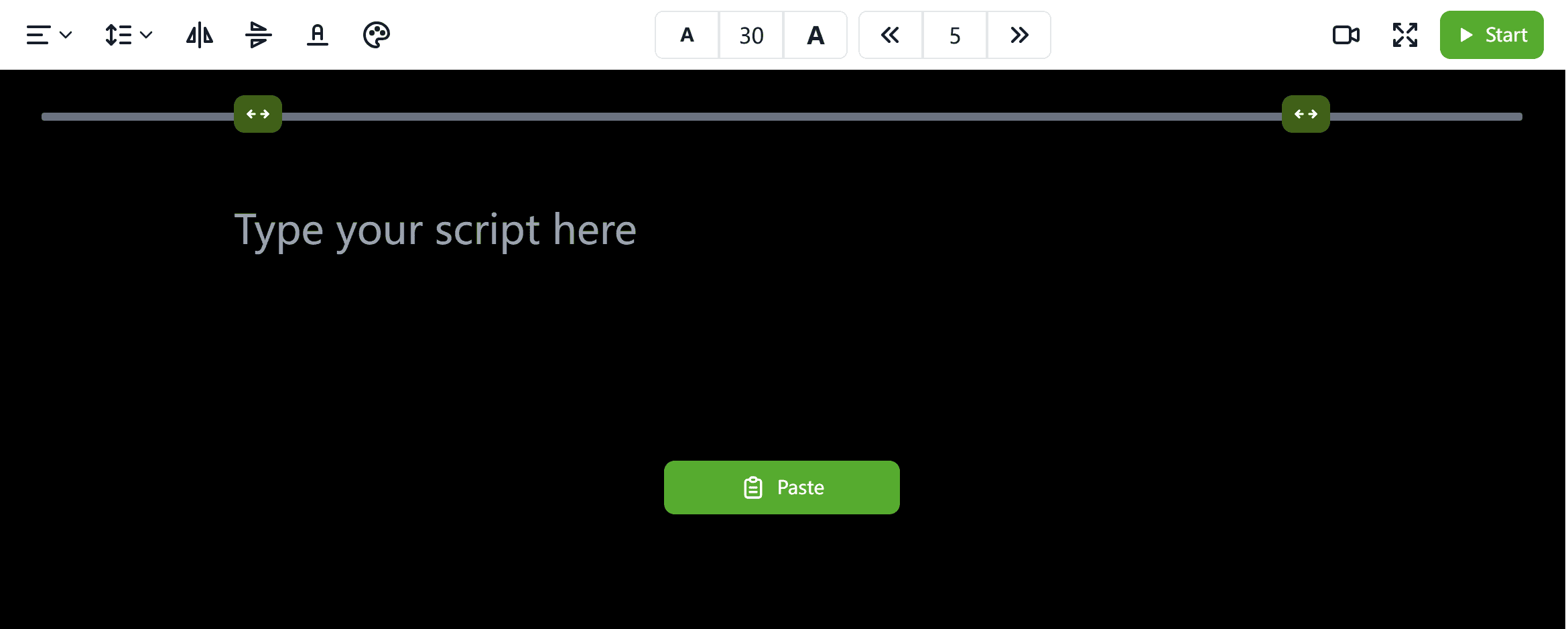
Flexible Display Settings: Customize font size, color, background, line spacing, and mirroring (horizontal/vertical flip).
-
Adjustable Scrolling & Full-Screen Mode: Control the auto-scroll speed or enter full-screen to minimize distractions.
-
Synchronized Recording:Open the teleprompter in your browser and record with your camera and mic at the same time — perfect for creators.
-
Mirror Display Support: Ideal for setups using external monitors or mirror reflectors; toggle mirror mode with a single click.
How to Use
Step 1: Enter or Import Script
Manually type or paste your text, or import previously generated transcripts (e.g., from the audio/video transcription tool).
Step 2: Adjust Display Settings
Use the toolbar at the top to customize font size, color, background, spacing, and mirroring options.
Tune the scrolling speed according to your recording environment for a natural reading rhythm.
Step 3: Start Prompting & Recording
Click “Start”to begin.
The text will scroll automatically — you can read while recording your video.
If you need to pause or rewind, simply click Pause or drag the progress bar to adjust position.